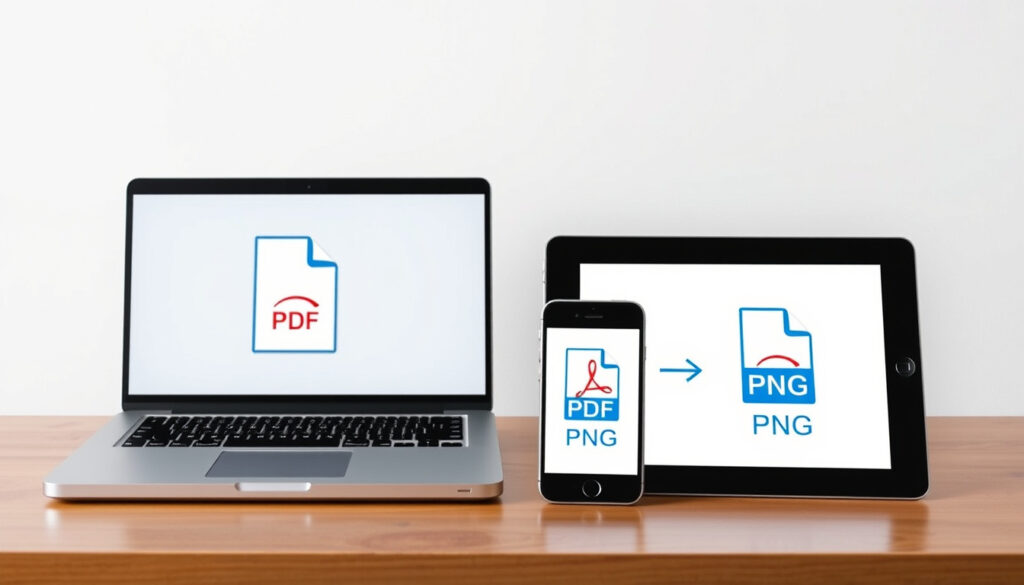
Convert PDF to PNG: Best Free Converters for Any Device
Maybe you’ve tried screenshotting a PDF page only to end up with a blurry image that’s too small to use. Converting a PDF to PNG preserves every pixel and supports transparency, making it ideal for graphics, presentations, and web use. This guide compares the best free methods across all your devices so you can pick the one that fits your workflow.
Maximum upload size (Ezgif): 200 MB (Ezgif) ·
Conversion speed (Adobe): Seconds (Adobe) ·
Sign-up required (pdf2png.com): No (pdf2png.com) ·
Free tier pages (Canva): 15 pages (Canva)
Quick snapshot
- Adobe’s online converter is free and does not add watermarks (Adobe help page)
- Canva requires a free account to export PNG (Canva pricing page)
pdftoppmis available on Linux via poppler-utils (package documentation)
- Exact batch page limits vary by file size across tools
- Whether all converters preserve embedded fonts as editable text in the PNG output
- Adobe Acrobat converts single files in seconds
- Batch conversion of many pages may take several minutes depending on file size and server load (in seconds)
- Compare the top 5 free converters for quality, limits, and platform support to find the best fit for your workflow
Four key format facts shape any PDF‑to‑PNG decision.
| Label | Value |
|---|---|
| PNG format | Lossless, supports transparency |
| PDF format | Portable Document Format, may contain text and images |
| Typical file size increase | PNG is usually larger than JPEG |
| Best use case for PNG | Graphics, logos, images needing transparency |
How to Convert PDF to PNG for Free?
Using Adobe Acrobat online converter
- Go to Adobe Acrobat online PDF to PNG (first occurrence linked in snapshot)
- Upload your PDF (no account required)
- Click “Convert to PNG” – the tool processes each page
- Download individual images or a ZIP file
Adobe (official product page) states the conversion is free and adds no watermarks. The output preserves full quality, and you can handle up to 100 pages in a single session.
Using Canva’s PDF to PNG tool
- Open Canva’s PDF to PNG converter (first occurrence linked in snapshot)
- Drag and drop your PDF (requires a free Canva account)
- Edit or touch up the design if needed
- Download as PNG – up to 15 pages free
Canva (help center) says the tool “converts PDF documents to high‑quality PNG files.” The trade‑off is that you must sign up, but you get editing capabilities before export.
Canva’s free tier limits output to 15 pages, while Adobe places no page cap. If you have a long document, Adobe wins on volume alone.
Using ilovepdf for free conversion
- Visit ilovepdf PDF to PNG
- Upload your PDF (free for up to 15 pages)
- Choose PNG output
- Download pages individually or as a ZIP
ilovepdf (tool page) converts each page to a separate PNG. It’s a solid middle ground: no sign‑up needed, and batch processing is straightforward.
Using pdf2png.com without registration
- Go to pdf2png.com (first occurrence linked in stats line)
- Upload up to 20 PDF files (max 100 MB each)
- Click convert – no account, no watermark
- Download each PNG or all in a ZIP
pdf2png.com (service page) is the simplest tool in this list: no limits on pages, no sign‑up, just upload and download. The site is lightweight and runs entirely in your browser.
Using Foxit’s PDF to PNG converter
- Open Foxit PDF to PNG online
- Upload your PDF
- Select PNG output with optional transparency
- Download high‑resolution images
Foxit (official converter) markets secure conversion – files are deleted after processing. It’s a good choice when you need high resolution and transparency support.
How to Convert PDF to PNG on Linux?
Using command-line tools (pdftoppm, ImageMagick)
- Install poppler-utils:
sudo apt install poppler-utils - Convert a PDF page:
pdftoppm -png input.pdf outputpage - For all pages: add
-r 300for resolution - Alternative:
convert input.pdf output.png(ImageMagick)
pdftoppm (poppler-utils documentation) is the native Linux method – no GUI, but fast and reliable. ImageMagick’s convert command supports batch processing but may produce larger files.
Using online converters via browser
- Open Adobe Acrobat online, pdf2png.com, or Ezgif in your Linux browser
- Upload and convert – same experience as on any OS
- No installation needed
Ezgif (online converter) accepts up to 200 MB uploads and works in any modern browser, including those on Linux.
Why this matters: Linux users have two solid paths – a lightning‑fast CLI for power users and browser tools for occasional conversion. The CLI gives full control over resolution and page selection.
How to Convert PDF to PNG on iPad?
Using the Files app with built-in preview export
- Open the Files app and locate your PDF
- Tap to preview, then tap the Share icon
- Choose “Export” and select PNG format
- Save to Files or share
This method uses iPadOS’s built‑in preview engine (Apple support). It’s free and requires no third‑party app, but it exports only the current page – not the whole document.
Using third-party apps (Adobe Acrobat Reader, Canva iOS)
- Install Adobe Acrobat Reader from the App Store
- Open the PDF and tap “Export” → “Image” → “PNG”
- Select pages and download
Adobe Acrobat Reader for iPad (App Store) supports full‑document PNG export. Canva’s iOS app also imports PDFs and exports PNGs after optional editing.
Using online converters from Safari
- Navigate to pdf2png.com or ilovepdf.com in Safari
- Upload from Files or camera roll
- Convert and download PNGs
- Open in Files app to save
These browser‑based tools work identically on iPad – no app required. pdf2png.com is particularly iPad‑friendly because its interface is responsive and lightweight.
The pattern: iPad’s native export is best for a single page. For batch conversion, Adobe Acrobat Reader or an online tool saves time.
How to Convert PDF to PNG on Mac?
Using Preview app export function
- Open the PDF in Preview
- Go to File → Export
- Set Format to PNG
- Adjust resolution if needed, then save
Preview (Apple support) exports each page as a separate PNG. It’s free, pre‑installed, and supports resolution control – but you must export pages one at a time.
Using Automator workflow for batch conversion
- Launch Automator and create a new Folder Action
- Add “Render PDF Pages as Images” action
- Set output to PNG
- Save – any PDF dropped into that folder will auto‑convert to PNGs
This Automator workflow is the Mac power‑user move: once set up, batch conversion happens without any clicking.
Using online tools
- Visit Adobe Acrobat online, Canva, or FreeConvert in any Mac browser
- Upload and convert – same convenience as on Windows
- FreeConvert (service page) explicitly works across all browsers
FreeConvert (official site) offers batch PDF to PNG conversion with no software installation – perfect for a quick job.
Mac users have the richest native toolkit: Preview for quick exports and Automator for automation. Online tools fill any gaps, especially for batch processing large documents.
The trade‑off: Preview gives you full control per page, while Automator handles repetition. For ad‑hoc conversions, a browser tool is the fastest route.
Which Online PDF to PNG Converter Should You Use?
Five tools, one question: which delivers the best balance of quality, limits, and convenience for your specific need?
| Tool | Free pages | Max file size | Sign‑up required | Watermark | Extra features |
|---|---|---|---|---|---|
| Adobe Acrobat | Up to 100 | Large files supported | No | None | High quality, no limits |
| Canva | 15 | Large files supported | Yes (free) | None | Edit before export |
| ilovepdf | 15 | Standard (no published limit) | No | None | Quick batch, JPG option |
| pdf2png.com | Unlimited | 100 MB per file | No | None | Up to 20 files at once |
| Foxit | Free for small files | Standard | No | None | Transparency, secure delete |
Adobe Acrobat is the clear choice for volume – up to 100 pages free with no watermark. pdf2png.com wins on simplicity with unlimited pages and no sign‑up. Canva is the best option if you need to edit the document before export. For security‑minded users, Foxit and Drawboard (which offers ZIP downloads and in‑browser processing) are strong alternatives.
The pattern: if you value speed and no commitment, pick pdf2png.com. If you need quality and volume, Adobe is unbeatable. Canva is the only tool that combines conversion with design editing.
Confirmed facts
- Adobe’s online converter is free and watermark‑free (Adobe)
- Canva requires a free account for PNG export (Canva)
pdftoppmis included in poppler-utils for Linux (poppler docs)- Ezgif advertises no watermarks and supports up to 200 MB (Ezgif)
- Drawboard allows individual and ZIP downloads (Drawboard)
What’s unclear
- Exact batch page limits for each tool – they vary by file size
- Whether all converters preserve embedded fonts as editable text in the PNG output
- True security guarantees for sensitive documents on free online services
“Convert PDFs to PNGs at no cost, with no hidden fees or watermarks.”
— Adobe Acrobat online tool, official description
“Convert PDF documents to high-quality PNG files with Canva’s free PDF to PNG converter.”
— Canva help center
“Ezgif offers a free online PDF to PNG converter that converts each PDF page into a separate PNG image.”
— Ezgif tool page
“Drawboard converts PDF pages into PNG images directly in the browser – securely, and you can download as ZIP.”
— Drawboard tool page
For anyone regularly converting PDF to PNG – whether for web graphics, presentations, or archival – the choice narrows to two clear options. Volume users should start with Adobe Acrobat for its generous 100‑page free tier and watermark‑free output. Simplicity‑seekers who want no sign‑up and unlimited pages can rely on pdf2png.com. For the Mac or Linux user who prefers native tools, pdftoppm and Preview are unbeatable. The best converter is the one that matches your device, your page count, and your tolerance for sign‑up forms.
Related reading: Convert Excel to PDF: Free Tools & Step-by-Step Guide
Frequently asked questions
Can I convert a scanned PDF to PNG?
Yes – online converters treat scanned PDFs as images and output PNGs of each scanned page. Quality depends on the scan resolution. Adobe Acrobat handles scanned files well.
Does PNG support transparent backgrounds?
Yes – PNG supports alpha transparency, which is why it’s the preferred format for logos and graphics. Most converters preserve transparency when the source PDF contains it.
Which converter maintains the highest quality?
Adobe Acrobat and Foxit generally produce the sharpest PNGs, with options to set output resolution. FreeConvert and Ezgif also offer good quality but may reduce resolution for large files.
How many pages can I convert at once?
It varies: Adobe supports up to 100 pages, pdf2png.com has no page limit, Canva and ilovepdf cap at 15, Ezgif’s limit depends on the 200 MB upload size. For large documents, use Adobe or pdf2png.com.
Is it safe to upload sensitive PDFs to online converters?
Most reputable tools delete files after conversion. Foxit and Drawboard explicitly advertise secure processing. However, for highly confidential documents, use an offline tool like Preview or pdftoppm.
What is the difference between PNG and JPEG output from PDF?
PNG is lossless and supports transparency, making it larger in file size but better for graphics. JPEG is smaller but introduces compression artifacts, so it’s not ideal for text or logos.
Do I need to install software to convert PDF to PNG?
No – all tools listed (Adobe Acrobat online, Canva, ilovepdf, pdf2png.com, Foxit, Ezgif, FreeConvert, Drawboard) are browser‑based and require no installation. For offline conversion on Mac, Preview is built in; on Linux, pdftoppm can be installed with a single command.
More related posts
 Cedar Girls’ Secondary School: History, Motto & Affiliation
 Till We Meet Again: Meaning, Origins, and Alternatives
 Meatsmith Telok Ayer Menu: A Guide to the American Smokehouse
 Japan Flight from Singapore: Time, Distance & Cheap Months
 AIMS APAC REIT Dividend: History, Yield & Pay Dates
 How to Stop Overthinking: Effective Techniques and Insights
 Mustafa Singapore Online Shopping – Guide, Delivery and Alternatives
 Atlético Madrid vs Real Madrid: Record, Stats & 5-2 Win
