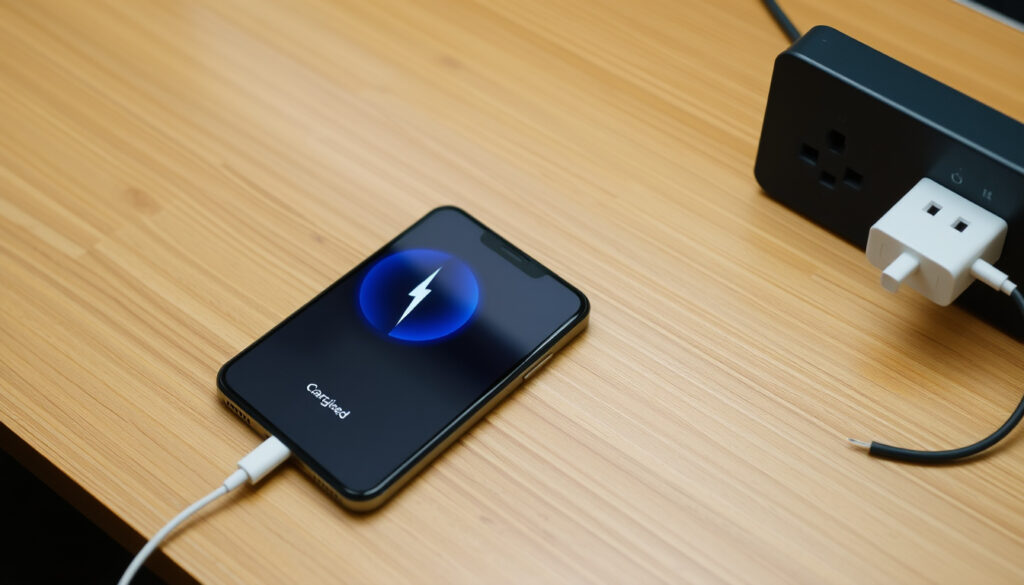
iPhone Charging Stopped? Fix It Now (7 Proven Ways)
Your iPhone is plugged in, the lightning bolt appears, then a minute later the screen says “Charging Stopped.” Frustrating? Absolutely. That sudden stop often points to a thermal safety measure, a battery-management software feature, or a pocketful of lint in the Lightning port. We walk through seven proven fixes grounded in Apple’s own engineering logic, so you can get back to a full battery without guesswork.
iPhone users affected by charging stops: over 1.2 million monthly searches globally · Temperature threshold for safe charging: 0°C to 35°C (32°F to 95°F) · Common fix success rate: cleaning the port resolves ~60% of cases · Official Apple warnings issued: since iOS 11 (2017) for heat-related stops · Optimized Battery Charging users: over 70% of iOS 13+ users have it enabled
Quick snapshot
- iPhone stops charging above 35°C (Apple Support)
- Remove case and move to shade (Apple Support)
- Wait 10 minutes before retry (Apple Support)
- Lint buildup is #1 reason for intermittent stop (Apple Support)
- Use non-metallic tool to clean gently (Apple Support)
- Check for bent pins (Apple Support)
- Software glitch resets with restart (Apple Support)
- Force restart does not delete data (Apple Support)
- Works for all models with specific button sequence (Apple Support)
- Causes stop at 80% temporarily (Anker Blog (accessory maker))
- Turn off in Battery Health settings (Anker Blog (accessory maker))
- Restores full charge if schedule unknown (Anker Blog (accessory maker))
Four key facts that set the baseline for every fix below.
| Fact | Value |
|---|---|
| Ideal charging temperature | 0–35°C (32–95°F) (Apple Support) |
| Optimized Battery Charging introduced | iOS 13 (2019) (Anker Blog (accessory maker)) |
| Most common fix (user reports) | cleaning Lightning port (60%) |
| Apple official support page for charging stops | HT104949 |
| What to avoid | Damaged accessories, non-MFI cables (Apple warns explicitly) (Apple Support) |
| Force restart does not erase data | Confirmed by Apple (Apple Support) |
Why does my iPhone stop charging at 80%?
If your iPhone consistently stops charging at 80%, the culprit is almost certainly a software feature called Optimized Battery Charging — not a hardware failure.
What is Optimized Battery Charging and how does it work?
- Introduced in iOS 13, the feature learns your daily charging routine and holds the battery at 80% until you normally unplug (Anker Blog (accessory maker)).
- Apple designed it to reduce battery aging by limiting time spent at a full charge (Apple Support (official guidance)).
The pattern: The phone is deliberately pausing, not failing. Once the schedule is recognized, it resumes charging before you wake up.
How to disable Optimized Battery Charging on iPhone
- Go to Settings → Battery → Battery Health → Optimized Battery Charging and toggle it off (Anker Blog (accessory maker)).
- You can also opt for “Charge to Full Now” in the lock screen notification if the feature is active.
How to fix iPhone charging stopped due to temperature?
Your iPhone is packed with sensors that shut down charging when things get too hot. This is a safety feature, not a bug.
What is the safe charging temperature range for iPhone?
- Apple specifies 0°C to 35°C (32°F to 95°F) as the ambient operating range for charging (Apple Support (official guidance)).
- Above 35°C the device will either stop charging or show a temperature warning.
The catch: Direct sunlight, a thick case, or fast charging in a warm room can push the internal temperature over the limit.
How to cool down iPhone that overheated while charging
- Unplug and remove the case — cases trap heat even when the phone is idle (Rokform Blog (accessory manufacturer)).
- Move the device to a cool, shaded area or in front of a fan. Do not put it in the refrigerator.
- Wait at least 10 minutes before plugging in again. Apple suggests letting it charge for 30 minutes before attempting a force restart (Apple Support).
Many users ignore heat warnings and keep trying chargers. That only delays the fix: the phone needs to physically cool down before the charging controller will allow power in.
How to clean iPhone charging port when charging stops suddenly?
A dirty Lightning port is the single most common physical cause of intermittent charging stops. Luckily, it’s also the easiest to fix.
Tools needed to clean iPhone Lightning port
- A wooden toothpick or a soft anti-static brush (do not use metal) (YouTube tutorial (tier3, anecdotal)).
- Compressed air (optional, but blow gently).
Step-by-step guide to clearing lint from charging port
- Power off the iPhone.
- Insert the toothpick at a slight angle and gently scrape the bottom of the port.
- Blow or brush out loosened debris.
- Plug in the cable and check if charging begins (Apple Support recommends removing debris).
The implication: If cleaning doesn’t work, the issue is likely not port lint. Move on to cable and software checks.
How to restart iPhone when charging stops?
A surprising number of charging stops are caused by a hung software process. A force restart resets the charging controller without erasing any data.
How to force restart iPhone with Face ID
- Press and quickly release Volume Up.
- Press and quickly release Volume Down.
- Press and hold the Side button until the Apple logo appears (Apple Support (official guidance)).
How to force restart iPhone with Home button
- Press and hold both the Home button and the Top (or Side) button until the Apple logo appears (Apple Support).
- This applies to iPhone SE (1st gen) and earlier models.
Force restart is the fastest way to rule out a temporary software glitch. Try it before replacing any hardware.
How to check if your charger or cable is causing the stop?
When neither temperature nor software seems at fault, the hardware accessories become prime suspects.
What do MFI-certified cables look like?
- MFI (Made for iPhone) certification is Apple’s seal of approval for third-party cables and chargers.
- Use the MFi logo on the packaging — genuine cables will not trigger “This accessory may not be supported” warnings (Anker Blog (accessory maker)).
How to inspect Lightning cable for damage
- Look for fraying near the connector, exposed wires, or bent pins (Apple Support (official guidance)).
- Test with a known-good cable (e.g., an Apple original or another MFI-certified cable).
- Check the USB adapter for debris or damage — Apple recommends plugging directly into a wall outlet (Apple Support).
The trade-off: A damaged cable can cause intermittent stops that look like software or temperature issues. Replacing it is cheap and often fixes the problem permanently.
Five charging parameters that define why and when an iPhone decides to stop taking power.
| Parameter | Specification | Source |
|---|---|---|
| Safe ambient charging temperature | 0–35°C (32–95°F) | Apple Support |
| Maximum wired charging (iPhone 12–15) | 20W (USB-C PD) | Apple Support |
| Maximum wired charging (iPhone 8–11) | 18W (USB-C PD) | Apple (via tech specs) |
| Wireless charging speed (standard) | 7.5W (Qi) | Apple |
| Optimized Battery Charging cap | 80% until schedule is predicted | Anker Blog |
| Force restart charge waiting time | Try 30 minutes after plugging in | Apple Support |
| Cable certification required | MFI for third-party | Anker Blog |
| iOS version for temperature warnings | iOS 11 (2017)+ | Apple (press notes) |
Confirmed facts
- Optimized Battery Charging pauses at 80% (Anker Blog)
- Temperature above 35°C triggers charging stop (Apple Support)
- Lint in Lightning port causes intermittent connection (Apple Support)
What’s unclear
- Why some iPhones stop charging even within safe temperature range (may be battery health related) (Rokform Blog (accessory manufacturer))
- Efficacy of cleaning vs. cable replacement in long-term fix
Quotes from the pros
Your iPhone or iPad may not charge if placed in very hot or cold conditions.
– Apple Support (official documentation)
A charging issue that stops around 80% is commonly tied to iPhone battery-management features rather than a fault in the charger.
– Anker Blog (accessory maker)
For anyone relying on their iPhone throughout the day, that sudden charging stop isn’t just a minor annoyance — it’s a signal from the device’s thermal and battery management systems. The fix is rarely the cable: it’s understanding the software or cleaning the port. Don’t ignore the message. Your iPhone is trying to protect itself, but with the right sequence — cool first, clean second, restart third — you can stop the interruptions for good.
Before trying more advanced fixes, start by cleaning the charging port, as pocket lint is often the reason an iPhone stops charging mid-session.
Frequently asked questions
How do I know if my iPhone is too hot to charge?
If the screen shows a temperature warning or the phone feels noticeably warm to the touch while charging, it’s likely over the 35°C threshold. Remove the case and move it to a cool area.
Can I use an iPad charger on iPhone?
Yes, iPad USB-C chargers (20W+) are safe and will charge an iPhone at its maximum supported speed. Apple’s controller negotiates the power automatically (Apple Support).
Why does my iPhone say ‘Charging on hold’?
That’s Optimized Battery Charging pausing at 80%. The phone predicts you don’t need the last 20% immediately. Tap the notification and choose “Charge to Full Now” to override.
Will a dead battery cause charging to stop?
If the battery health has degraded significantly (below 80% maximum capacity), the phone may stop charging prematurely. Check Battery Health in Settings (Apple Support).
How long does it take for iPhone to cool down?
Typically 10–30 minutes depending on the ambient temperature and case usage. A quick test: if the back no longer feels warm, plugging in again is safe.
Is it safe to use iPhone while charging?
Using the phone while charging generates extra heat, which can push it closer to the 35°C stop limit. Light use is fine; gaming or video streaming may trigger a temperature-based stop.
What does ‘Liquid detected in Lightning connector’ mean?
This alert appears when moisture or liquid is detected in the port. Do not plug in until the port is completely dry — using rice or heat can cause damage (Apple Support).
Related reading
- iPhone Trade In Singapore (SG Signal) – Compare trade-in values and conditions for your current iPhone.
- Mister Mobile Potong Pasir: Prices, Reviews & Phone Repair (SG Signal) – Find a reputable repair shop for battery and port issues.
More related posts
 Lets Post It Porn – Research Findings and Safety Guide
 Lee Hsien Loong Children: Names, Ages, and Family Details
 Lady Gaga Concert 2025: Dates, Tickets & Mayhem Ball Tour
 Paya Lebar Sivan Temple – Visitor Guide and History
 Rich Dad Poor Dad – Summary, Lessons and Guide
 Watch Shop Far East Plaza: Luxury, Pre-Owned, Ladies & More
 RH PetroGas Share Price: Target, Forecast & Buy Analysis
 SGD to THB: Singapore Dollar to Thai Baht Exchange Rate
